

Review the labeling interface
Check the labeling interface the agent builds for your experts and fix it when its build falls short — try the real form in the UI for Experts card's View tab, fix it by asking the agent or by hand in the Edit tab, and verify a submission with the User Interface check.
The agent builds the screen your experts fill in for each item, called the labeling interface. You can check that screen and fix it by asking the agent or editing it yourself. This applies to the Generation and Quorum nodes, the two whose inspector carries a UI for Experts card.
Review and fix the interface while the pipeline is still editable, before you deploy. Once a run is active the interface locks, as When editing is locked explains.
What the expert sees
Section titled “What the expert sees”At deploy, four parts of your build make up what the expert reads and fills in: the onboarding course first, if it is turned on, the Display name shown alongside the task, the written instructions, and the labeling interface covered on this page. The pay and time per task also come from the node, on its Audience & Pricing card. The rest of the screen around the form, such as task lists and timers, belongs to the platform experts work in.
Only the labeling interface is reviewed and fixed here. The Display name and instructions and the onboarding course are separate cards with their own rules.
Try the real screen
Section titled “Try the real screen”Open the node and find its UI for Experts card. The card has two tabs, View and Edit. View shows the real, interactive form with a sample item already filled in. The expert fills in this same form, and the User Interface check opens it. Where the agent built the interface without choosing a sample, it filled the form with the dataset’s first item.
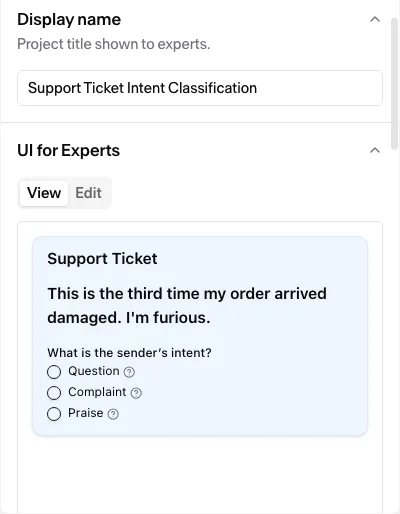
Fill the form in the way an expert would. Check that every input they need is shown and that the controls collect the right answer. The screen must give the expert enough information to act. Run the User Interface check to confirm that a submission is valid. That check is optional at deploy; the blocking interface gate is the automatic User Interface Types lint, which typechecks the interface against the node’s fields.
Fix it by asking the agent
Section titled “Fix it by asking the agent”Asking the agent is the usual way to change the interface. Describe the change in plain words: “add a comment box under the video”, “make the rating required”, “show the source text above the question”. The agent rebuilds the interface and saves it.
The agent can also test the interface in ways the card cannot:
- It catches build errors that would stop the form from rendering, before you see it.
- It takes a screenshot of the rendered form and reads it back.
- It fills the form and validates a complete submission end to end before it reports the interface done.
Fix it by hand
Section titled “Fix it by hand”The Edit tab opens the editor with the sample data and the form preview side by side. Those two panes are all it shows on open — to reach the interface markup itself, switch on the View pane in the Layout bar. Then you change the interface and watch the preview update. There is no Save button: edits autosave about a second after you stop, and every save is a step you can undo.
The markup language and its component set are not documented in this portal. Hand edits work best for small adjustments you can make by copying the patterns already in the markup — changing a label, reordering controls, tweaking a layout. For structural changes, or to add a component you do not see used yet, ask the agent: it knows the component set and validates the build.
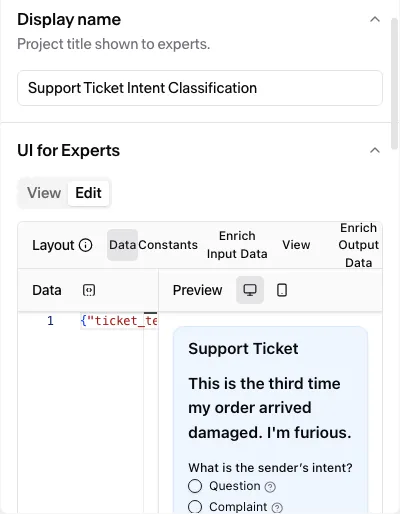
The sample data is a JSON object keyed by the node’s input fields, and its keys must match those inputs. A key the node does not read, or a missing value for a required input, blocks the deploy. See the sample-data errors. To change which inputs and outputs the node has, edit the node’s Datapoint Structure card or ask the agent. The interface only lays out fields that already exist.
Verify like an expert would
Section titled “Verify like an expert would”View shows you the screen. The User Interface check confirms whether a submission is valid. It is the one check only a person can run and the only test you can run that checks what you submit against the node’s output fields. The agent can set it up but cannot complete it. Run it, complete the screen the way an expert would, and submit.
A User Interface check you open and leave unsubmitted expires after about an hour, and the run then shows as failed. Rerun it and complete the screen.
When editing is locked
Section titled “When editing is locked”Both tabs stop accepting edits once the pipeline has an active run. Deploying locks the pipeline against every edit, including the interface (see One pipeline, one run). You can still open View to look at the form, but you cannot fill it, and Edit is disabled.
After deploy, the agent refuses to change the interface and tells you to clone the pipeline into a new one to keep iterating. A failed deploy is the one exception. It frees the same pipeline to fix and deploy again.
Related
Section titled “Related”- Self-check — the User Interface check and the other checks each node offers, who runs them, and the Issues gate.
- Generation node — the node’s cards, its fields, and the Display name and instructions the interface sits beside.
- Quorum node — the multi-expert labeling node that also carries a UI for Experts card, where each expert submits their own entry.
- Errors and how to fix them — the sample-data and video-duration errors the interface can raise at deploy, verbatim, each with its cause and fix.