

Label a large dataset in batches
Label more than one run's worth of data, and repeat the cycle for a recurring workload, by deploying in batches of up to 10,000 items and cloning the pipeline for each new batch.
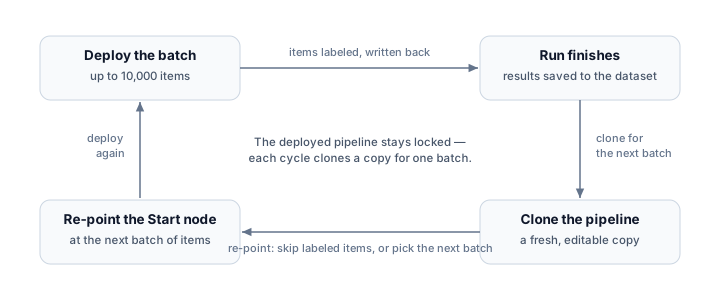
A single run labels at most 10,000 items, and a deployed pipeline does not run again. A workload larger than that, or a recurring one, is therefore a cycle of runs, each over a batch of up to 10,000 items. Labeling 50,000 items means about five such cycles.
Before you start
Section titled “Before you start”You need:
- A pipeline you have built and checked, ready to deploy. If you have not run one yet, work through the first labeled dataset tutorial first.
- Your items in a dataset. The pipeline’s Start node decides which of them a run picks up — its dataset choice, its filter, and its Max items to launch field.
- A funded team balance. Billing is pay-as-you-go for the items a run actually processes, and a run cannot deploy on an empty balance.
Step 1 — Keep each run within the per-run limit
Section titled “Step 1 — Keep each run within the per-run limit”Decide which items the run will label. On the Start node, choose the dataset, and use the filter and the Max items to launch field so the run picks up no more than 10,000 items. You can instead ask the agent to set the dataset, filter, and maximum together in one change. The node counts its matching items as soon as a dataset is chosen; with a maximum set, the line also shows how many will launch:
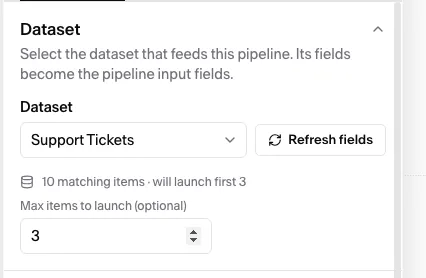
If the launch count goes over 10,000, it turns red and the deploy is blocked with a message telling you to set Max items to launch to 10,000 or fewer, or narrow the filter. A filter matching zero items also blocks Confirm and deploy in the cost window.
Step 2 — Deploy the first batch
Section titled “Step 2 — Deploy the first batch”Open the Pipeline tab and click Deploy in the bottom toolbar. The Cost breakdown (forecast) window opens with the cost for this run.
In the cost window:
- Review the run’s Expected and Maximum totals.
- Tick the consent checkbox. It confirms that the per-item price is fixed at deploy, that the totals are estimates billed pay-as-you-go for the items the pipeline actually processes, and that the configuration cannot change after launch.
- Click Confirm and deploy.
The run starts. Deploy disappears, a Contract button in the top-left panel reopens this run’s frozen cost breakdown at any time, and the Items tab shows the batch progressing. When it finishes, export the results.
Step 3 — Clone the pipeline for the next batch
Section titled “Step 3 — Clone the pipeline for the next batch”Once a pipeline has been deployed, it is locked: you cannot edit it or run it again. The one exception is a deployment that failed. A failed deploy frees the same pipeline to fix and deploy again, no clone needed. Otherwise, to label another batch you make a copy: on the Pipeline tab of the deployed pipeline, open the More pipeline actions menu (the ellipsis in the bottom toolbar) and click Clone. The copy keeps the same name and takes the next version number, which shows up in export filenames. Cancel sits directly on that toolbar, joined by Resume whenever the run has paused itself for funds; Clone and Export live in the menu, where Export downloads the pipeline configuration as a .pipeline file, not the labeled results. The agent does none of this for you; deploying, cloning, and canceling are also available over the public API, while resuming is UI-only. Resume or cancel a run covers what each control does.
A new pipeline opens in the same project with the same configuration. The original stays locked and untouched. The copy has no run yet, so its nodes are editable and its Deploy button is active again.
Step 4 — Point the copy at the next batch
Section titled “Step 4 — Point the copy at the next batch”A clone starts out reading the same dataset as its source, so re-point it at the next batch before you deploy. The platform writes each run’s output fields back to the dataset, stamped with the run that produced them, so a filter can select only the items an earlier run has not labeled yet.
Skip items an earlier run already labeled. After the first run finishes, tick the copy’s filter checkbox No revision for this field on the field the pipeline writes its result to, either by hand on the Start node or by asking the agent. The next run then launches only the items where that field is still empty. This works when all of these hold:
- the pipeline has deployed at least once. The output field is created at the first deploy, so it exists for the filter to test.
- the previous run finishes before the next one deploys. The filter reads only values recorded before launch, so an in-flight run’s items are re-selected and charged again.
- the output field’s name stays unchanged across clones. A renamed field is a new dataset field, so every item looks unlabeled again. If a field with the same name has a changed shape, the deploy fails with a schema-mismatch error.
- any recorded value counts as done. Another pipeline writing the same field, or the agent importing values into it, also excludes an item. A failed item, which wrote no value, is picked up again.
To assign batches yourself instead of skipping finished work, divide the dataset up front:
- Tag each item with a batch value in your data. For example, use a
batchfield set to1,2,3. On the copy’s Start node, use the column filter to keep one batch value per run. The filter matches a field’s value exactly, so a batch tag selects that batch cleanly. - Split the data into separate files. Upload each batch as its own dataset (for example, one 10,000-item file per batch) and point each run’s Start node at the next one.
Switching the dataset clears Max items to launch, so set it again after the switch. Otherwise, the copy selects all matching items, and a selection over 10,000 blocks the deploy. When the switch cannot preserve the old configuration, it also re-seeds the Start node’s output fields from the new dataset.
Step 5 — Deploy the copy, and repeat
Section titled “Step 5 — Deploy the copy, and repeat”Deploy the copy the same way as in Step 2. It gets its own cost window and frozen contract, priced fresh, since a clone does not inherit the first run’s prices (see Pricing and billing). The copy’s run starts and its Items tab fills with the new batch, while the first pipeline’s finished run stays untouched. Repeat once per batch.
Costs and funding
Section titled “Costs and funding”The Cost breakdown (forecast) window computes everything for the current run. The two labeling paths bill differently. Expert labeling charges the expert payout once per expert per item, plus any review and any one-time onboarding. Synthetic labeling charges generation tokens plus LLM review. Pricing and billing covers every cost line, what Expected and Maximum mean, the contract that freezes prices at deploy, and how your balance is drawn down.
For this batch workflow:
- Size a month. Divide the Total row’s Expected figure by the run’s item count for a per-item figure, then multiply by your monthly volume.
- Fund before you deploy. Fund to at least the run’s Maximum total. The deploy window flags a shortfall, but the platform blocks deploying only on an empty balance (below $0.01). A shortfall can pause the run midway, though it does not block the deploy.
- Resume after a pause. If the balance runs out mid-run, the run pauses. Top up, then resume. Resume or cancel a run covers the controls.
What this does not do
Section titled “What this does not do”- There is no setting that raises the 10,000-items-per-run limit. Anything above it requires more runs.
- Runs do not chain automatically. Each run’s batch is whatever its Start node selects at that moment. The platform does not queue the next batch on its own. To skip items an earlier run labeled, set the filter described in Step 4 yourself.
- A large standing volume is many cycles. Hundreds of thousands of items a month is dozens of clone-and-deploy cycles. In the UI each carries its own cost window and consent; over the public API, where deploying, cloning, and canceling are available, you can script the cycle instead of running it by hand.
Related
Section titled “Related”- Pricing and billing — the cost lines, Expected vs Maximum, the contract freeze, and balance mechanics
- Start and End nodes — the full filter and item-limit rules behind Steps 1 and 4
- Export your labeled results — collecting each batch’s results, and merging exports across batches