

Export your labeled results
Export the results of a pipeline run as a JSON file and download it from the Items tab.
When a pipeline run has produced results, you can export them as a JSON file from the run’s Items tab. The agent does not support exports.
Before you start
Section titled “Before you start”You need:
- A pipeline you have deployed, so it has at least one run. See the first labeled dataset tutorial if you have not run a pipeline yet.
- Access to that pipeline. Anyone who can view the run can export it.
You can export at any point. Each export is a snapshot taken when you start it, so for a file that reflects every result, wait until the run has finished before you export. Every export is one JSON file with an entry per item. CSV and other formats are not available today.
An export covers one run. A workload spread across several runs produces one export per run, which you combine yourself after downloading. See Label a large dataset in batches.
Step 1 — Open the Items tab
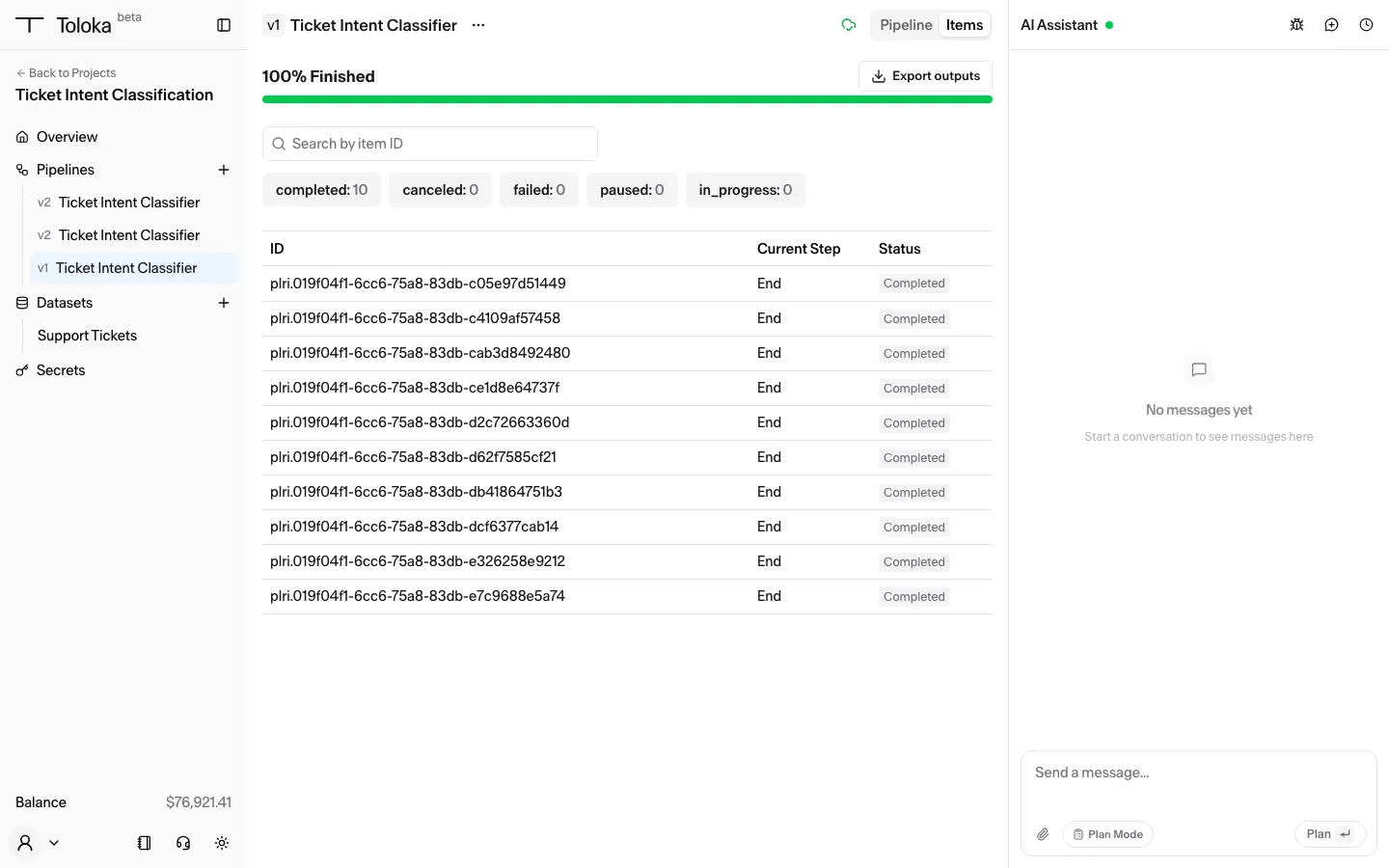
Section titled “Step 1 — Open the Items tab”Open your pipeline run. In the top-right of the pipeline view, switch the Pipeline / Items toggle to Items. The per-item status list appears, with a progress summary at the top and an Export outputs button in the top-right.
Step 2 — Start an export
Section titled “Step 2 — Start an export”Click Export outputs. The Exports popover opens. It reads No exports yet. the first time. Click New export. A confirmation reports the export has started, and a new entry appears in the popover with a climbing progress percentage. You can start another export at any time. Each one is listed separately with the time it was created.
Step 3 — Wait for the export to finish
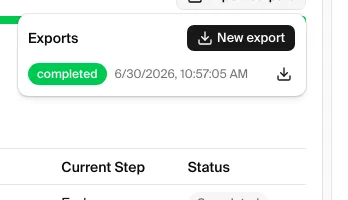
Section titled “Step 3 — Wait for the export to finish”The export runs in the background and updates without a page refresh. A large run takes longer because every item is written to the file. When it finishes, the entry’s progress percentage changes to a green completed badge next to its creation time, and a download icon appears at the right end of the row.
Step 4 — Open the export
Section titled “Step 4 — Open the export”Click the download icon (a downward arrow, tooltip Download) at the right end of the completed export’s row. The browser downloads the file, named after the pipeline, its version, and the moment you started the export.
The results are a JSON list with one entry per item in the run. Export format contains the full contract, including the per-node metrics. A completed entry looks like this:
{ "index": 1, "status": "completed", "input": { "ticket_text": "Hi, how do I reset my password? I can't find the option anywhere." }, "output": { "intent": "question" }}Every entry carries the item’s index and status — one of completed, failed, cancelled (spelled so in the file), paused, in_progress, or idle for an item that never started. Its input fields, the output fields of a completed item, the partialOutput fields of a canceled item, and per-node metrics (such as timing, attempts, and labeler IDs) appear only when the item has them, as of the moment you started the export. An item that had not started carries only its index and status; an item still in progress carries its inputs but not yet its outputs.
A canceled item has the status cancelled and no output. Once a node has written a field the End node returns, the entry’s partialOutput carries the fields the End node returns that had a value when the item was canceled. For example, an item accepted without review, on a run cancel or at the 14-day node timeout, carries its answer there when the End node returns it. See Items that wait for Human QA.
Each click of the icon generates a download link that is valid for 30 minutes. The export itself stays in the list, so if a link expires, click the icon again for a fresh one.
Related
Section titled “Related”- Label a large dataset in batches — merging exports across batches and the batch cycle that produces them
- Fields and data — the input and output fields in the file